WhatsApp Requests
Desktop/Laptop
Open your WhatsApp via this link: https://web.whatsapp.com/ on the same browser where you have the app open.
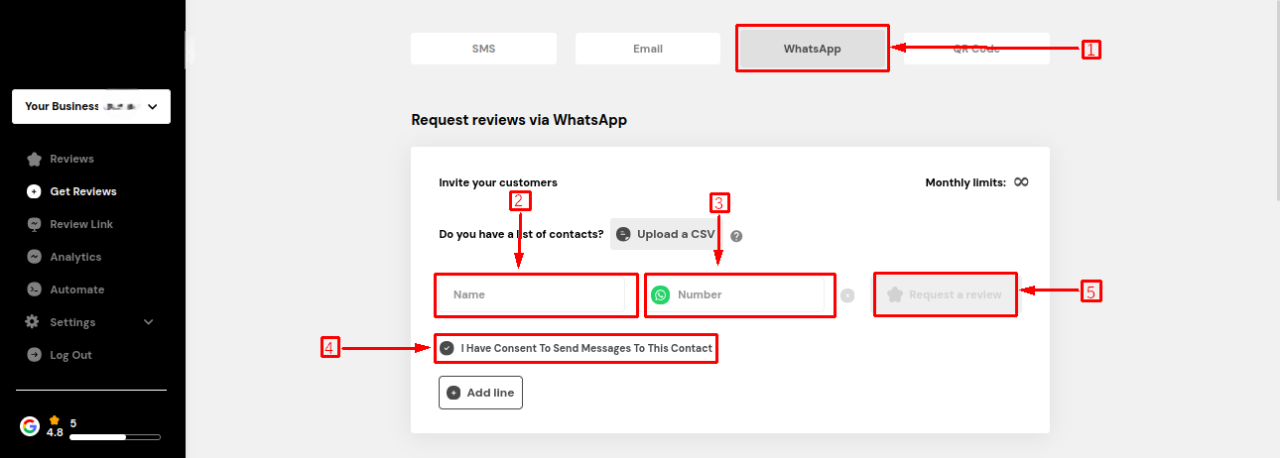
In the app under "Whatsapp Requests," enter the customer's name and their telephone number (ensure to include the prefix in the telephone number).
Check the option "I have consent to send messages to this contact."
Click "Request a Review" to send your review.
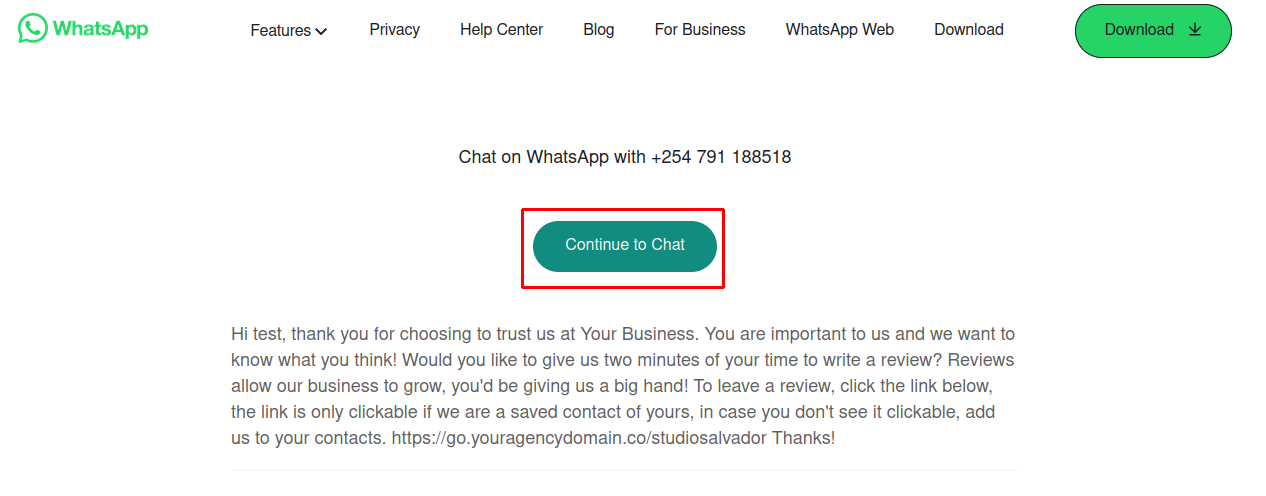
On the window/tab that opens, click "Continue to Chat."
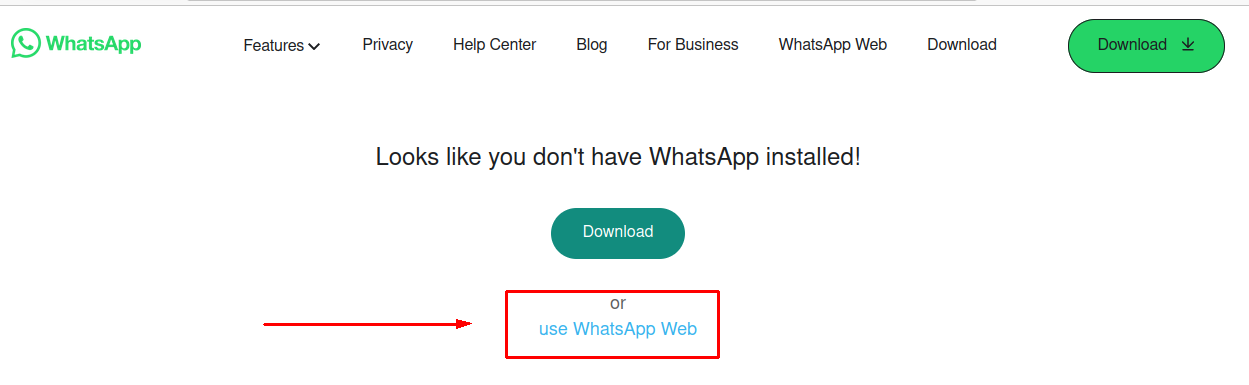
Choose "Use WhatsApp web." Clicking "WhatsApp web" will display a starting chat message.
Once your WhatsApp messages are loaded, send your request.
Using a phone
Confirm that pop-ups are enable on your phone browser.
In the app under "Whatsapp Requests," enter the customer's name and their telephone number (ensure to include the prefix in the telephone number).
Check the option "I have consent to send messages to this contact."
Click "Request a Review" to send your review.
Whatsapp on your phone will load with the message ready to be sent.
Note:
At the moment you can only send one message at a time.
You will get the below error message if you fail to follow the guidelines when entering the phone number.

Last updated